
Updated 2 November 2026
Upload a new version of a file
When a file changes, give it a new version instead of uploading a second copy. The link and the place stay the same, so every memo, view and artifact that uses the file shows the new one straight away, and nobody is left working from "final_v2". Older versions stay in the file's history, where you can open any of them or bring one back.
Upload a new version
Open the file's menu (File options) and choose Upload new version….
Choose the new file.
Pick one:
Add as a new version: the old one stays in the history.
Replace and delete the old version: the version being replaced is deleted. Older ones stay.
The new version must be the same kind of file. A PDF stays a PDF and an image stays an image. CSV and TSV count as the same kind, and so do plain text and Markdown.
Upload a file with a name that's already there
If you upload a file into a place where a file of that name already exists, Fieldwerk says This file is already here and asks what to do: Add as a new version, Replace and delete the old version, or Keep both. Keep both gives the new file a number, such as "sales (1).csv".
See and restore older versions
Once a file has more than one version, its menu (File options) gains Version history, and the file's own page has a Version history button. The newest is marked Current. For any other version you can open or download it, Make this current to bring it back, or Delete version.
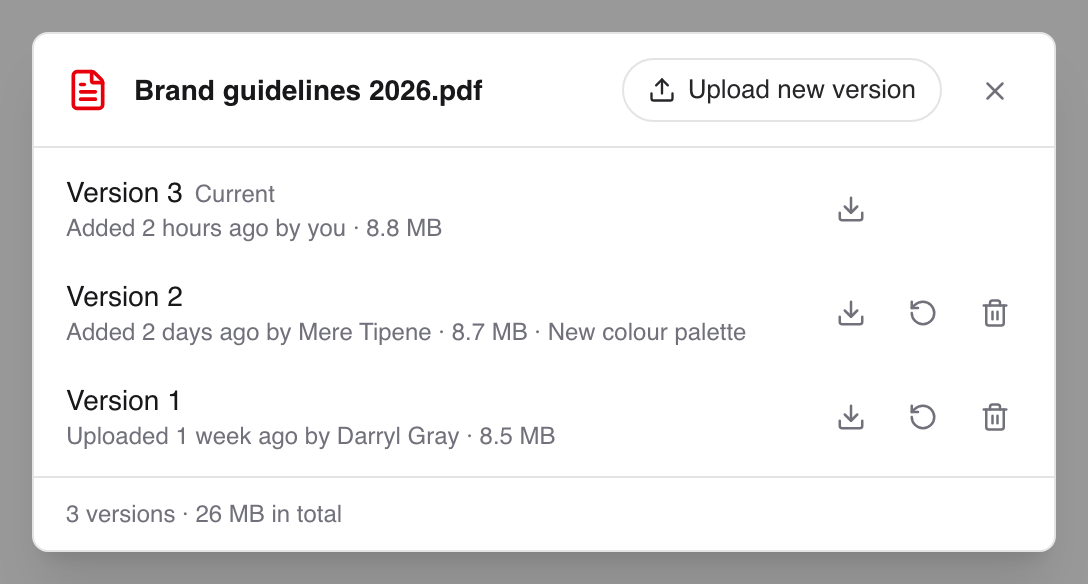
Bringing a version back copies it in as a new version, so nothing is lost. Each version records who saved it and how: in Fieldwerk, through an AI assistant, or by a restore. Every version counts towards your storage.
Artifacts update by themselves
If an artifact reads the file, every open copy of it reloads with the new data a couple of seconds later. Nobody needs to allow it again. See Build an artifact that shows your data.
Have your AI assistant do it
A connected assistant (see Connect Claude to Fieldwerk or Connect ChatGPT to Fieldwerk) can change a CSV, TSV or JSON file and save the result as a new version, with a note on what changed:
In Fieldwerk, add October's figures to sales.csv in my sales notebook as a new version and note what you added.It can also bring back an older version of any file:
In Fieldwerk, restore version 2 of sales.csv in my sales notebook.