Updated 2 November 2026
What AI assistants can do in Fieldwerk
Connect Claude, ChatGPT or another AI assistant and your team's memos become something you can talk to. Ask for "this week's client notes as a status update" and it reads the memos, writes the update and files it where your team will look. Ask it to work through a reviewer's comments and it edits the memo and replies in each thread.
The assistant works as you, with your access and nothing more. Every change it makes lands in the memo's history, so you can see what it did and undo it. Not connected yet? See Connect Claude to Fieldwerk, Connect ChatGPT to Fieldwerk or Connect other AI tools to Fieldwerk.
Capture what you'd otherwise lose
The useful parts of a conversation, a call or a document end up in a memo, filed and findable, without you leaving the chat.
Create a memo, or add to one you already have: a new section, a list item, a table row, a ticked task.
Edit just one section of a long memo, so the rest stays untouched.
Upload images and files, and attach links.
In Fieldwerk, save the decisions from this conversation as a memo called "Pricing review" in my client collection, with a Decisions heading and an Open questions heading.Find and pull together
The assistant can search every memo you can open, list a collection, and find memos by their properties across your workspace. Then it reads what it finds and writes from it.
In Fieldwerk, find every memo in my project collection with the status Blocked and tell me what each one is waiting on.In Fieldwerk, read the three most recent meeting notes in my client collection and draft a status update for the client as a new memo.Keep things organised
File memos into collections and notebooks, set properties such as status, owner and due date, apply tags, and save views such as a board grouped by status. Organising never counts against any limit.
In Fieldwerk, go through my inbox collection, set an owner and a due date on each memo based on what it says, and move anything finished into a notebook called Done.Run a review without a meeting
The assistant can read every comment thread on a memo, reply, resolve threads, assign them to people, and make the edits reviewers asked for.
In Fieldwerk, read the comments on my proposal memo, make the changes people asked for, and reply in each thread saying what changed.Share and publish
Change a memo's link, invite people to a memo, share a collection with your workspace or publish it as a read-only page, within whatever you're allowed to do yourself. See Share a memo with a link or with people.
Build pages from your data
An assistant can write an artifact: a small HTML page in a memo that charts or tabulates the data files in a notebook, and updates whenever they do. See Build an artifact that shows your data.
Set up the place it works in
It can create collections and notebooks, and write their standing instructions: the conventions every assistant follows when working there. See Give a collection standing instructions.
A good habit: give each collection standing instructions before you let assistants loose in it, so they file and format things the way your team does.
What it can't do
Reach anything your account can't.
Change billing or workspace security settings.
Make changes without signing in. Before you approve the connection, an assistant can only read memos whose link you give it.
On Free, an assistant can make 200 content changes a day per workspace; what counts is on Choose a plan and manage billing.
The full, always-current list of tools is at fieldwerk.ai/connect/tools.
When you're not sure what to ask
The assistant asks Fieldwerk for guidance that fits where you are and suggests a next step. For a week of prompts to try, see Your first week with your AI assistant.
Manage connected assistants
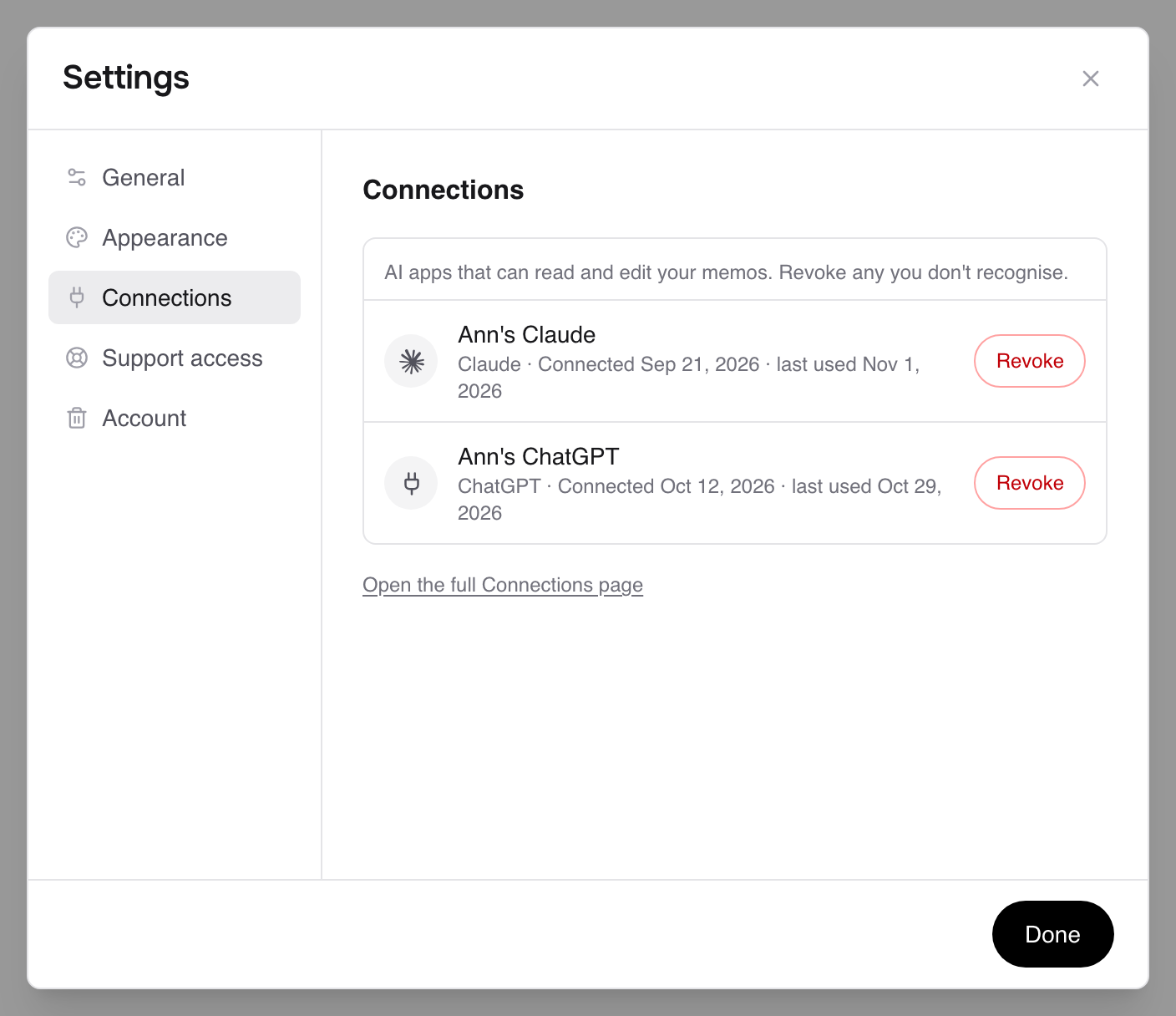
Open Personal settings and go to Connections. It lists every AI app connected to your account, with when it was connected and last used. Click Revoke on any you don't use or don't recognise.