
Updated 2 November 2026
Share a collection with your team
A collection is a project's home: the place your team and your AI assistant work from. Sharing it sets who can read, comment on, edit or run everything in it in one go, so a new project or a new starter is one setting, not a memo-by-memo chore. Open Collection settings and choose Access. Share with everyone in the workspace, with just the people and groups you choose, or both. Each gets a level: View, Comment, Edit or Manage.
New collections are shared with the whole workspace.
Share with everyone in the workspace
Open the collection and click Collection settings.
Choose the Access tab.
Turn on Share to workspace.
Set the level for Everyone in {workspace}.
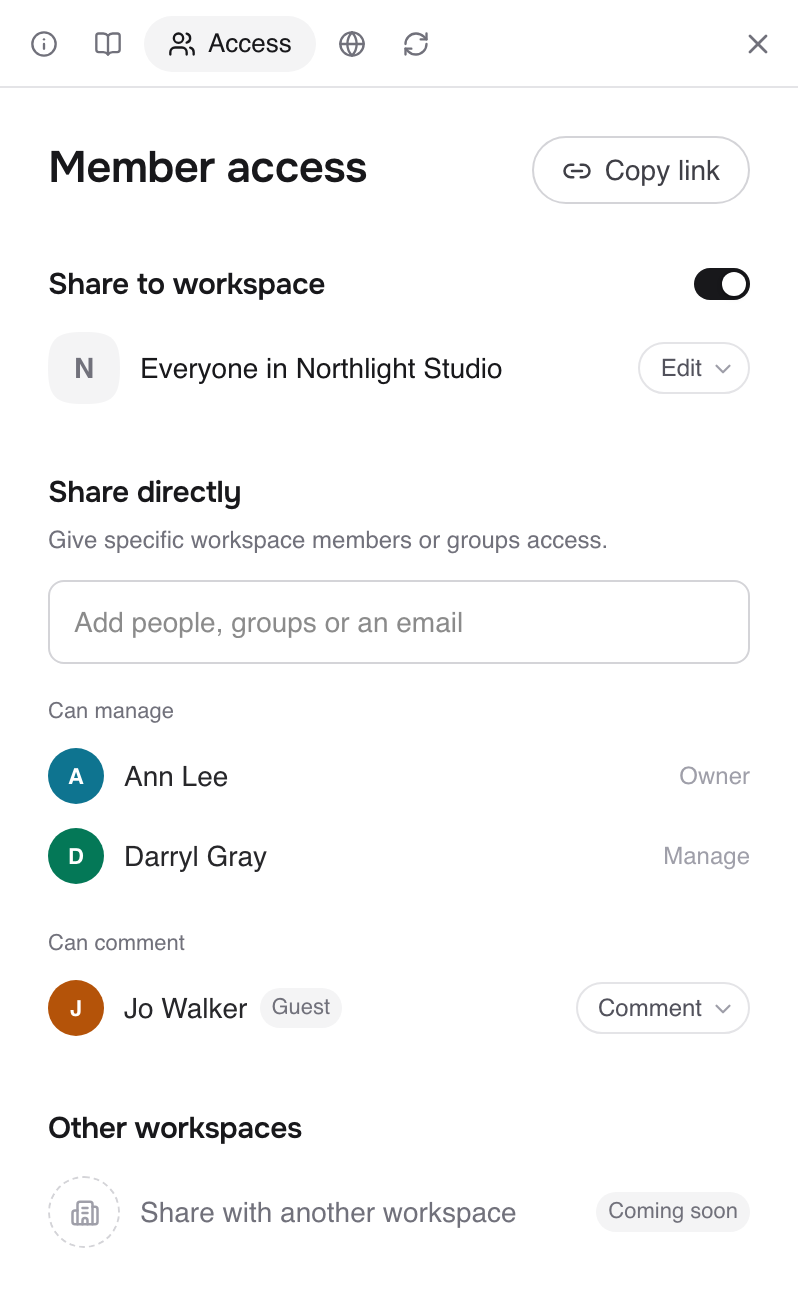
Only the collection's owner can give the whole workspace Manage.
Make a collection private
Turn off Share to workspace. Only the people you add under Share directly can then open the collection. Use this for client work or anything not everyone should see.
Workspace owners and admins can't see, open or manage a private collection either, unless they're added to it.
Add specific people or groups
In Access, under Share directly, type a name, group or email address in Add people, groups or an email.
Choose a level.
Add them.
Typing the email address of someone outside the workspace invites them as a limited member with access to just this collection. Limited members take a lower-priced seat and are on Pro only. See How member types work.
People who haven't accepted yet show as Pending, and get their access when they join.
What each level allows
Level | Can |
|---|---|
View | Read memos and files |
Comment | Read and comment |
Edit | Read, comment, edit memos, add memos and files, change views, and write the collection's description and standing instructions |
Manage | Everything above, plus change who has access, rename the collection and publish it |
See how someone's access adds up
A person can reach a memo in several ways at once: through the workspace, a collection invite, a direct share or a link. Each gives a level, and the highest one wins. Choose who someone is and how things are shared to see what they can do.
Remove someone or hand over the collection
Open the person's row menu and choose Remove access. The owner can also choose Transfer ownership to hand the collection to someone else.
Ask for more access
If you can only view a collection, open its menu and choose Request more access…. Write why you need it and click Send request. The collection's managers can approve or decline it.
Have your AI assistant do it
Ask a connected assistant (see Connect Claude to Fieldwerk or Connect ChatGPT to Fieldwerk) to set the collection up the way the project needs:
In Fieldwerk, share my project collection with everyone in my workspace at Comment, and give my site team group Edit.A good habit: give each collection standing instructions, so your assistant files and formats things the way that team does. See Give a collection standing instructions.