
Updated 2 November 2026
Track work with properties
Properties are the fields that turn a pile of memos into work you can run: a status, an owner, a due date, a priority. Set them and a collection becomes a board of proposals by stage, a table of actions sorted by due date, or a calendar of site visits. Your AI assistant reads and writes the same properties, so "what's still in review for Acme?" is a question it can answer, and "mark these as sent" is a job it can do.
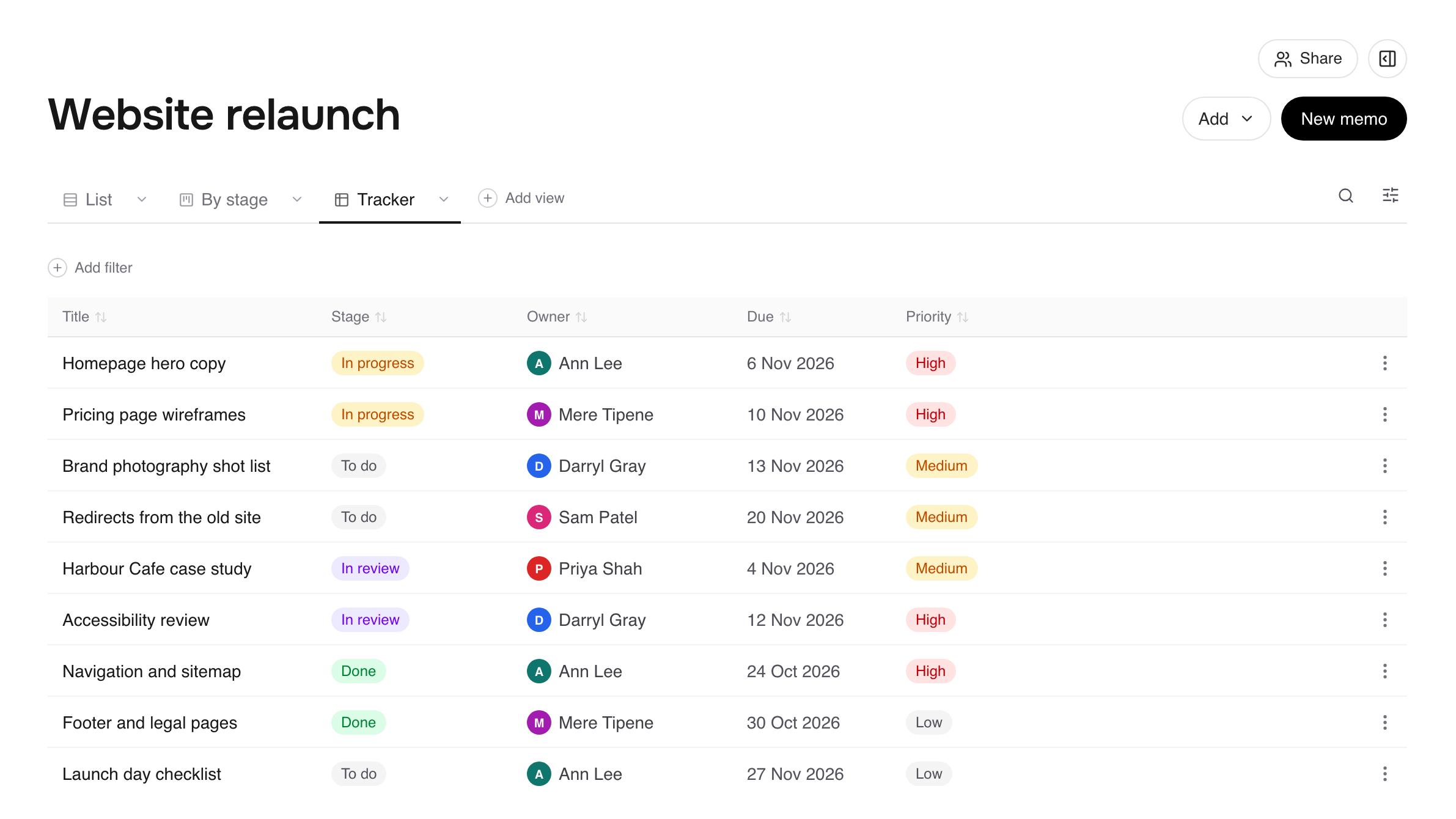
There are two kinds, and they're separate:
Collection properties belong to one collection. The same memo can be "In review" in one collection and "Done" in another. Boards, tables and calendars use these.
Memo properties belong to the memo itself and go wherever it goes. They're stored at the top of the memo (its front matter).
Add a property to a collection
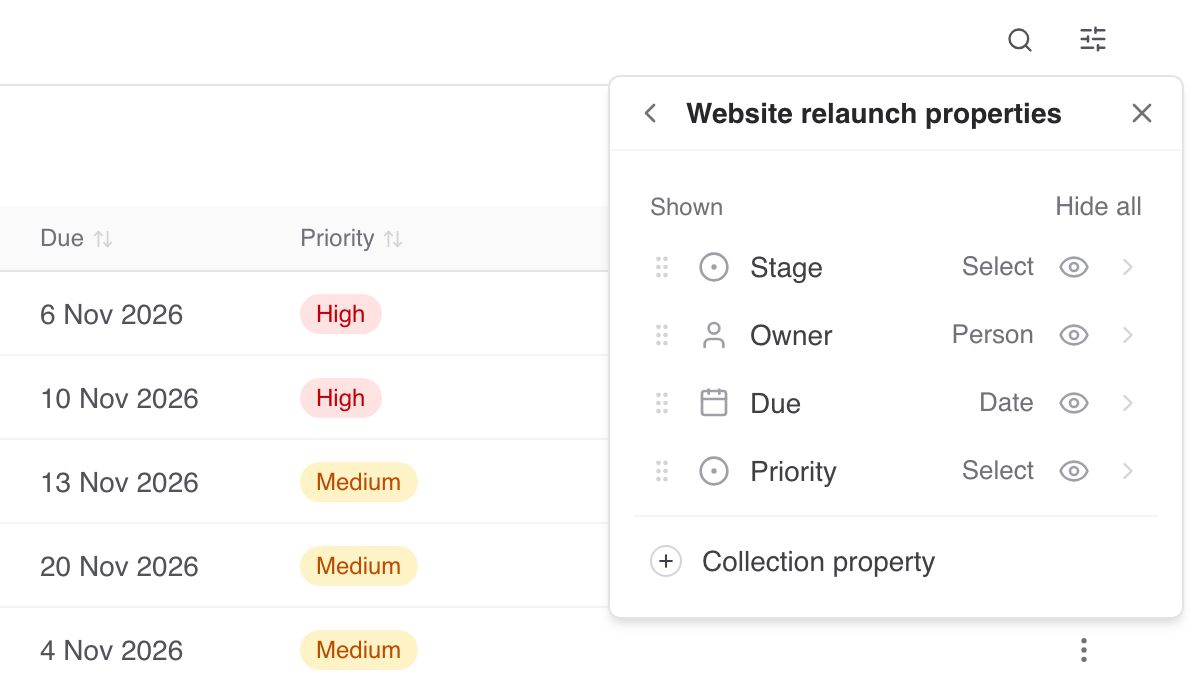
Open the collection and click View settings on any view.
Choose Edit properties.
Click Collection property and give it a name.
Choose its type and, for a select, its options.
Add a description so people and AI assistants know what it means and when to set it. People see it as a tooltip on the property; assistants read it before they set a value.
You can also create a property from a board or calendar while you set it up.
Property types
Type | Holds |
|---|---|
Text | A short piece of text |
Number | A number |
Date | A day, or a day and time |
Date range | A start and end date |
Select | One option from a list, each with its own colour |
Multi-select | Several options from a list (collection properties only) |
Checkbox | Yes or no |
Person | Someone in the workspace |
URL | A link |
List | Several free-text values (memo properties only) |
Combine into a date range turns a separate start and end date into one Date range.
Set a property on a memo
Open the memo. Its properties show above the text, the memo's own and each collection's. Click a value to change it, or use Memo property or Collection property to add one.
On a board, dragging a card to another column sets the property the board is grouped by.
Change or delete a property
In Edit properties, click a property to rename it, change its type or options, or Delete property. Removing an option clears it from every memo that had it, so check what's using an option before you remove it.
Have your AI assistant do it
With a connected assistant (see Connect Claude to Fieldwerk or Connect ChatGPT to Fieldwerk), set up tracking on a collection:
In Fieldwerk, add a select property "stage" to my proposals collection with the options Draft, Sent, Won and Lost, described as "Where this proposal is with the client", and a date property "decision due". Then set stage to Won on every proposal that mentions a signed contract.Ask across the whole workspace, not one collection at a time:
In Fieldwerk, what's assigned to me anywhere in my workspace with a review due before Friday?A good habit: give every select property a small, fixed set of options and a one-line description. Boards stay tidy, and your assistant picks the right value instead of inventing a new one.