
Updated 2 November 2026
Add files and links
Keep the files and web links a piece of work needs beside the memos about it, so nobody hunts through email or a shared drive for the latest version. Attach a file to a memo, or put it in a collection or notebook where it shows in every view with the collection's properties. Each file has its own link and its own version history, and your AI can read it, add to it and build on it.
Attach a file to a memo
Open the memo and find Attachments at the bottom.
Click Upload and choose a file, or drag files onto the panel.
To attach a web link, click Link. Dropping a file other than an image onto the memo text attaches it too; an image goes into the text instead. See Format a memo with headings, tables, images and more.
Add a file to a collection or notebook
Open the collection or notebook.
Click Add and choose Upload file or Add link.
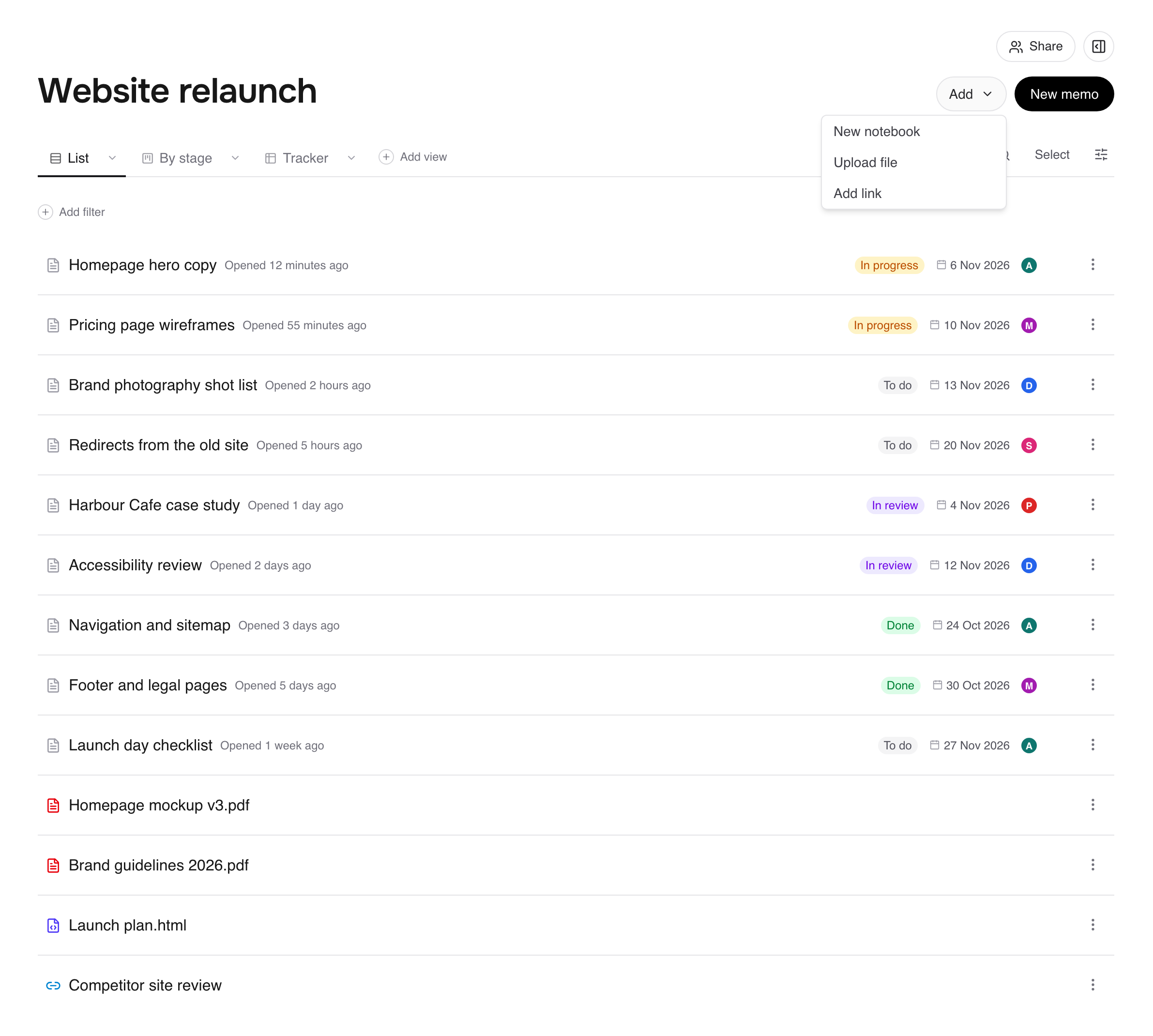
You can also drag files straight onto a view. On a board, each column has its own Upload file and Add link buttons, so the file lands in that column.
Add a link
Add link asks for the URL and a Name, with an optional description and a Summary of what's at the link. The summary is the part your AI can write, so people know what's behind a link without opening it.
What you can upload
Documents: PDF, Word, Excel, PowerPoint, plain text and Markdown.
Data: CSV, TSV and JSON.
Web pages: HTML. These open as interactive pages called artifacts. See Build an artifact that shows your data.
Images: PNG, JPEG, WebP and GIF. SVG isn't accepted.
Audio and video: common formats such as MP3, WAV, M4A, MP4, WebM and MOV.
ZIP files.
Size limits
Free | Pro | |
|---|---|---|
Most files | 25 MB | 25 MB |
HTML files | 5 MB | 5 MB |
Video | 50 MB | 500 MB |
Images in memo text | 5 MB | 5 MB |
Total storage for the workspace | 50 MB | 2 GB |
Every version of a file counts towards storage.
Opening a file
Links open in a new tab.
HTML files open as a page you can use, in a new tab.
CSV, TSV and JSON files open in Fieldwerk as a table or formatted data. Hover over one in a list to preview it.
Other files, such as PDFs, images and video, download.
Manage a file
Open a file's menu (File options) to:
Rename file
Move to notebook
Upload new version… and Version history: see Upload a new version of a file
Remove from collection or Remove from notebook, which takes it out of there and keeps the file
Delete file in a collection or notebook, or Move to trash on a memo's attachments
Files don't have a trash yet. Both delete the file and all its versions everywhere it appears, straight away, and free its storage. Only the file's owner can delete it.
Have your AI do it
Once your AI is connected (see Connect Claude to Fieldwerk or Connect ChatGPT to Fieldwerk), ask it to add a file it has a web address for, or to file a link with a summary:
In Fieldwerk, add a file from a web address to one of my collections. Ask me for the address, then show me my collections and ask which one.In Fieldwerk, attach a web link to one of my memos and write a short summary of what's at the link. Ask me for the address and which memo it goes on. If you can't open the page, ask me to paste in what it says.A good habit: keep data files in the notebook with the memos that use them, so an artifact in that notebook can read them.