
Updated 2 November 2026
See a collection as a list, board, table, calendar or timeline
A view is a saved way of looking at a collection or notebook, shown as a tab that everyone who can open the collection sees. The memos don't move; the view decides which ones show and how. So one collection of client work can be a board of proposals by stage for the sales call, a table sorted by due date for Monday planning, and a calendar of site visits for the field team, each its own tab. Add one with Add view, pick how it looks, and set its filter, sort and grouping.
Kinds of view
View | Good for |
|---|---|
List | Reading down a set of memos |
Board | Moving work through stages, one column per value of a property |
Table | Seeing many properties side by side |
Calendar | Memos on the days they're due or happen |
Timeline | Work spread across weeks or months |
Canvas | Laying memos and files out freely, like a whiteboard |
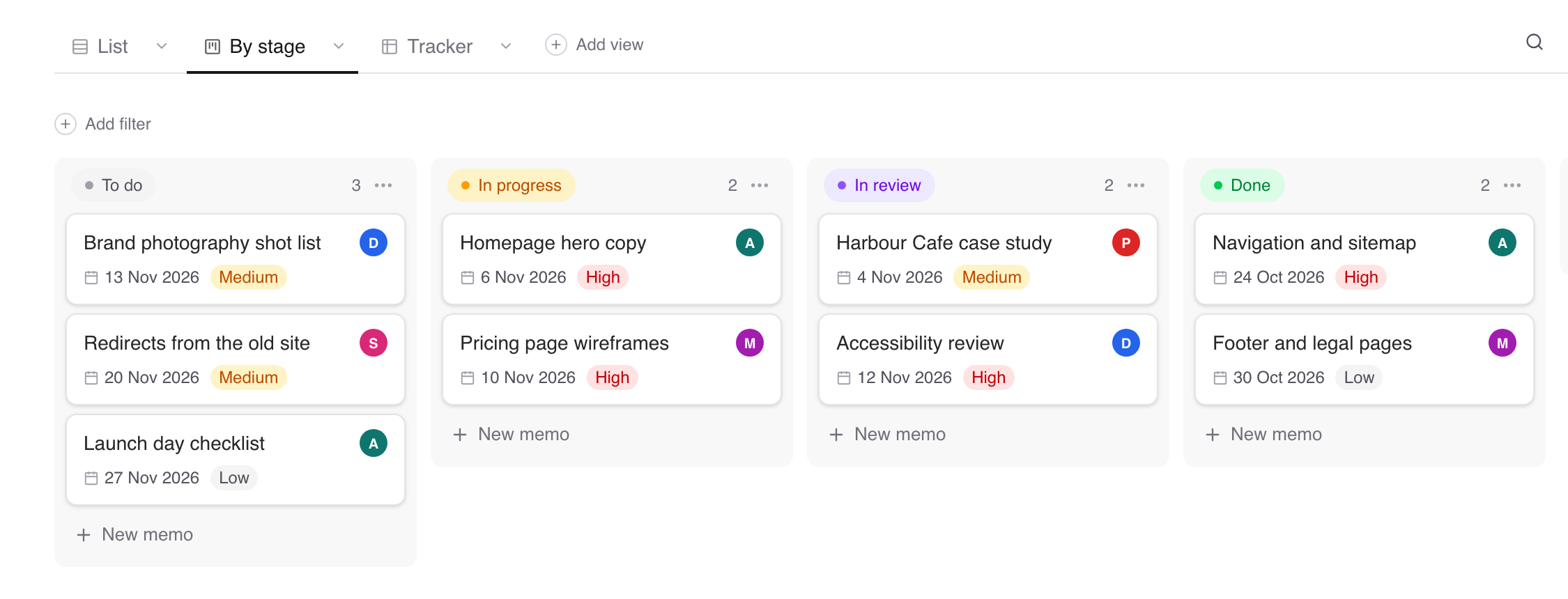
Boards, calendars and timelines are built from a property, such as a status or a due date. If the collection doesn't have one yet, see Track work with properties.
Add a view
Open the collection or notebook.
Click Add view at the end of the tabs.
Give it a View name and choose a kind.
Click Create view.
Only people who can edit the collection can add views.
Filter, sort and group a view
Click View settings and set:
Group by: the property that makes a board's columns, or splits a list, table or timeline into groups.
Filter: click Add filter to show only matching memos, such as everything still in review.
Sort: the order of memos.
Properties to show: which properties appear on each card or row.
Files: Show files to include the collection's files next to its memos.
Calendars and timelines have their own settings, such as Calendar by or Show timeline by (the date property they use), Colour, Week starts on and Weekends.
Your changes are just for you until you click Save for everyone. If someone else saved first, Reset brings you back to their version.
Rename, copy or remove a view
Open the tab's menu for Edit view, Rename view, Duplicate view or Delete view. A collection always keeps at least one view.
Choose which view opens first
Collection managers can choose Set as default from a tab's menu. That's the view people land on unless they've picked another tab themselves. Make it the one that answers the question most people arrive with.
Share a view
Copy link to view in View settings copies a link that opens that tab. It only works for people who can already open the collection. To show a view to people outside, publish it. See Publish a collection as a read-only page.
Have your AI do it
With your AI connected (see Connect Claude to Fieldwerk or Connect ChatGPT to Fieldwerk), set up the tab the team will live in:
In Fieldwerk, add a board to one of my collections. Show me my collections and ask which one, then look at its properties and suggest how to group the board, how to sort it and what to show on each card. Save it once I agree.For a one-off question, ask instead of saving a view:
In Fieldwerk, show me my collections and ask which one to check, then list the memos in it that are due this week. Just list them, don't save a view. If it has no due date property, say so and offer to add one.A good habit: save a view when the team will keep coming back to it, and ask your AI when you only need the answer once. Every saved tab is one more thing for everyone to scan past.