
Updated 2 November 2026
Invite people to your workspace
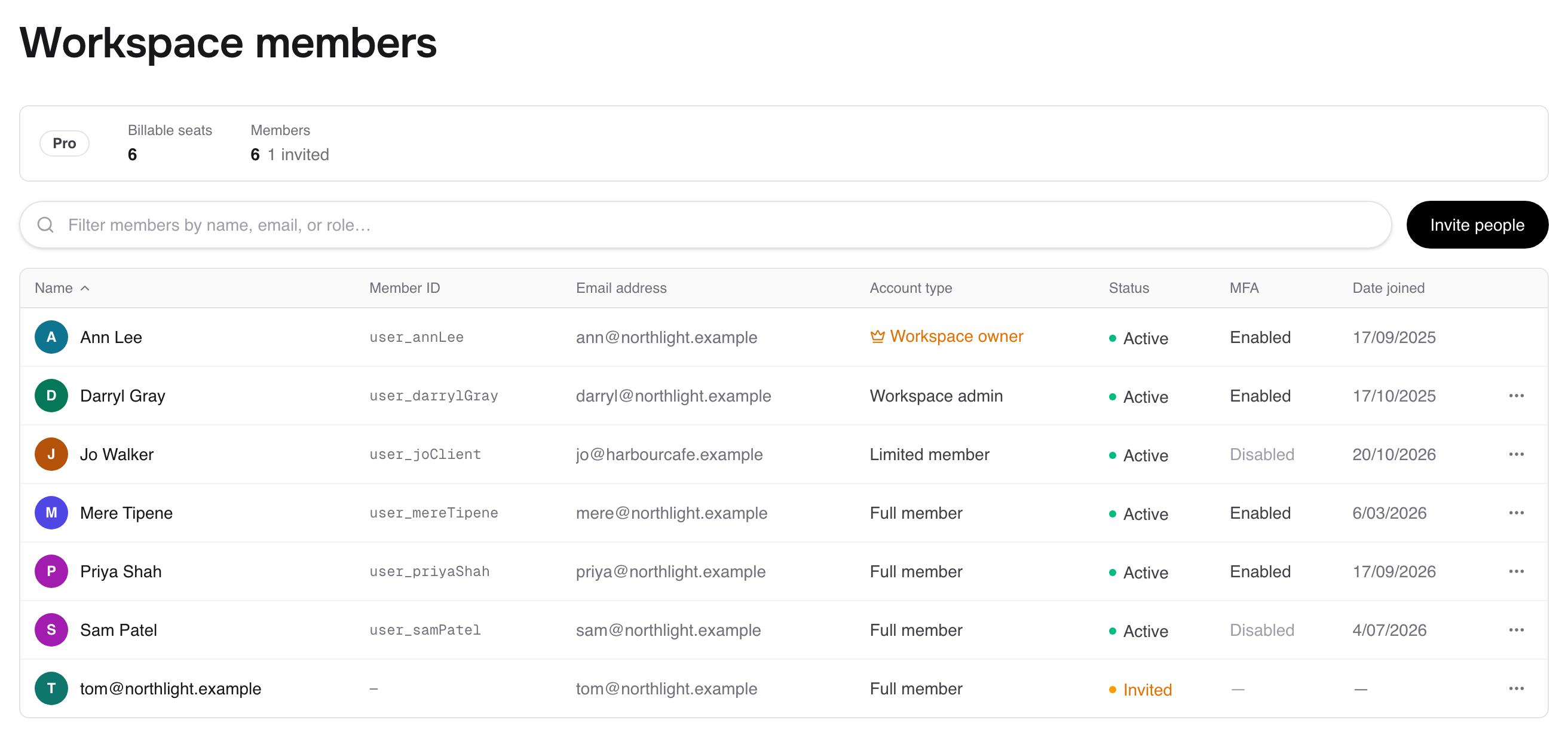
Inviting someone as a member makes the workspace theirs too: every collection shared with the workspace, and every memo their AI can reach, opens for them the moment they join. Owners and admins invite from Workspace settings, under Members, and the role they pick decides what the person sees and whether they take a paid seat.
Only invite members for your team. If you want a client to see one memo, share it with them as a guest from the memo's Share dialog; guests are free. If they need whole collections, invite them as a limited member. See How member types work.
Inviting members is part of Pro. On Free, the owner is the only member, though you can still share memos with up to 5 guests.
Invite someone
Open Workspace settings (the cog beside the workspace name, or Cmd+K then Workspace settings).
Go to Members and click Invite people.
Enter their Email address.
Choose a Role: Full member, Limited member (then pick their Collections) or Admin. Only the owner can invite admins.
Click Invite.
They get an email with a link to join. A pending invite doesn't take a paid seat until it's accepted.
Let people from your domain join by themselves
On Pro, open Security & Access, add your Approved domains and turn on Let people at these domains join automatically. Anyone who signs up with an email at that domain joins without an invite, so new starters never wait on you.
Organise people into groups
Under Groups, type a New group name and click Add group. Share a collection or memo with the group once, and everyone you add to the group later gets it too.
Change someone's role
On Members, open their Actions and choose Change to full member, Change to limited member or Change to admin. Moving someone to limited member asks which collections they keep.
Remove, disable or leave
To remove someone:
On Members, open their Actions and choose Remove from workspace.
Pick who takes over their memos and collections in this workspace.
If memos were shared with them directly, you can tick Keep their access as a guest on these specific memos.
Click Remove member.
Disable member blocks their access without removing them, and they stop taking a paid seat until you choose Enable member. Their memos and collections stay as they are.
To leave a workspace yourself, open Actions on your own row and choose Leave workspace. Your memos and collections there pass to the owner.
Have your AI do it
Your AI (see Connect Claude to Fieldwerk or Connect ChatGPT to Fieldwerk) can't send invites, but it can tell you who's in the workspace and what someone owns before you change them:
In Fieldwerk, who are the members of my workspace, and which of them are limited members?In Fieldwerk, I'm thinking of removing someone from my workspace. Show me the members and ask which one, then tell me what they own there and where they're still named on a board or in a view.For what the people you invite see when they join, send them Start in a workspace you've been invited to.