
Updated 2 November 2026
Publish a collection as a read-only page
Turn a collection into a public web page your team keeps up to date from inside Fieldwerk: a help centre for customers, a blog, a published list of standards or a client-facing project page. You pick one saved view, and that view decides what visitors can see. The page can look like the view itself, or like a help centre or a blog built from it. Edit a memo and the page updates; nothing about the setup changes for visitors until you click Go live, and you can unpublish at any time.
The help site you're reading is one: a Fieldwerk collection published with the Help centre layout, one memo per page.
Publishing is for collection managers. It is available on every plan; hiding Powered by Fieldwerk, a custom domain and your own analytics need Pro.
Publish a collection
Open the collection and click Collection settings.
Choose the Publish tab.
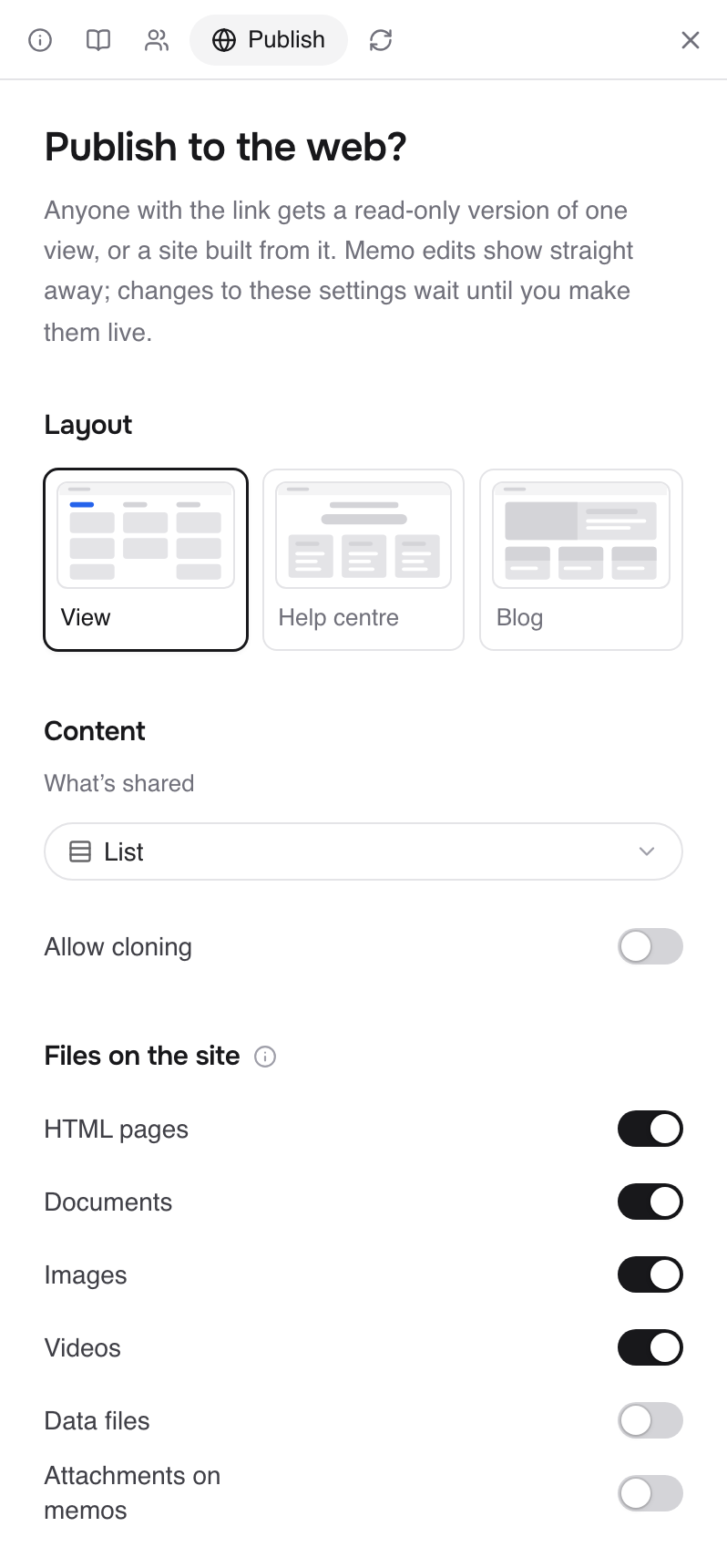
Under Layout, choose View, Help centre or Blog.
Under Content, use What's shared to pick the saved view to publish. Only memos and files in that view are reachable.
Set up the layout, files, address and access (below). The preview beside the settings shows what visitors will see. Switch its Screen size and Preview theme to check it on a phone and in dark mode.
Click Go live.
Fieldwerk says Live on the web and members see that label next to the collection's title.
Choose what's shared
You publish a view, so the view's filter decides what visitors can reach. To publish only some memos, make a view that shows just those, then publish it. A view that shows different things to different people (for example "assigned to me") can't be published.
If some memos in the view are also in other collections, Fieldwerk asks Go live with this view? so you can check before they become public.
Memos kept out of collections (with Share via collections off) are never published.
A good habit is to add a "Published" property to the collection and publish a view filtered on it. A memo goes live when someone ticks the box, and nobody has to touch the publish settings again.
Choose a layout
View shows the view as it looks in Fieldwerk, read-only.
Help centre builds a help site: a Site name, Footer name, Accent, Fonts and Search for the whole site; a Heading, Subheading and Sections on the home page; and On this page contents on each article. Sections come from your notebooks or from a property the shared view shows, and Show sections as sets cards or a list.
Blog builds a blog with a post per memo, newest first. It has the same site settings, plus Show posts as, Covers, Categories (none, notebooks or a property the view shows) and Show dates.
Help centre and blog sites can also have Header links, Footer links and a Copyright line. The footer shows your workspace's picture with the Footer name (your workspace's name unless you change it), and a Powered by Fieldwerk line that you can turn off on Pro. Every page on a site also has a plain-text Markdown copy at its address plus .md, and the site has an llms.txt, so AI tools can read it cleanly. A blog has an RSS feed at feed.xml.
Choose which files are shown
Under Files on the site, turn each kind on or off: HTML pages, Documents, Images, Videos, Data files and Attachments on memos. Data files and attachments are off unless you turn them on. Turning a kind off hides it from lists and from its own address, but pages and artifacts that use those files still work.
An artifact shows its data on the published page when the artifact and every file it reads are part of what's published. See Build an artifact that shows your data.
Add your own analytics
On Pro, the Analytics section of the Publish tab takes a PostHog project key, a Google Analytics measurement ID or a Mixpanel project token. They run only on your own domain, never on the Fieldwerk address, so set up a custom domain first. See Put a published collection on your own domain.
Set the address, password and expiry
Open Address and access:
Link name: the last part of the page's address, after
/<workspace>/c/.Password: turn it on and set one. Visitors need it to open the page.
Expiry: No expiry, or a date after which the link stops working.
On Pro, a workspace admin can show the site at your own address, such as help.yourcompany.com, from Custom domain in the same panel. See Put a published collection on your own domain.
What visitors see
A read-only page with your workspace's logo and name.
No comments, ever.
A missing page inside the site shows the site's own "Page not found" page, with a way back to its home page.
Memo edits show straight away. Changes to the publish settings wait until you make them live.
Change or stop publishing
After you edit the settings, click Make N changes live, or Discard to throw the changes away.
To take the page down, click Unpublish and confirm. Visitors can't open it any more, and your settings are kept for next time.
Have your AI do it
Once your AI is connected (see Connect Claude to Fieldwerk or Connect ChatGPT to Fieldwerk), it can set up and publish a collection the same way, and its changes go live at once:
In Fieldwerk, I want to see what publishing a collection is like. Explain that anyone on the internet can read a published collection, then show me my collections and ask which one, or offer to make a small test collection. List what would be visible and check with me before you publish it as a help centre. Then give me the link and tell me how to unpublish it. If I'm not allowed to publish it, tell me why and who can.