
Updated 2 November 2026
Create and edit a memo
Click New memo in the sidebar and start typing. The first heading becomes the title, Fieldwerk saves as you type, and anyone with edit access can work on the same memo at the same time. A memo is where a meeting, a decision or a plan stops living in someone's head or chat history and becomes something your team and your AI can find, link to and build on.
A memo is a plain Markdown document with its own link. You can read it anywhere, download it, and hand it to an AI.
Create a memo
Open the workspace you want the memo in.
Click New memo in the sidebar.
Type a heading on the first line. This is the memo's title. If there's no heading, Fieldwerk uses the first line.
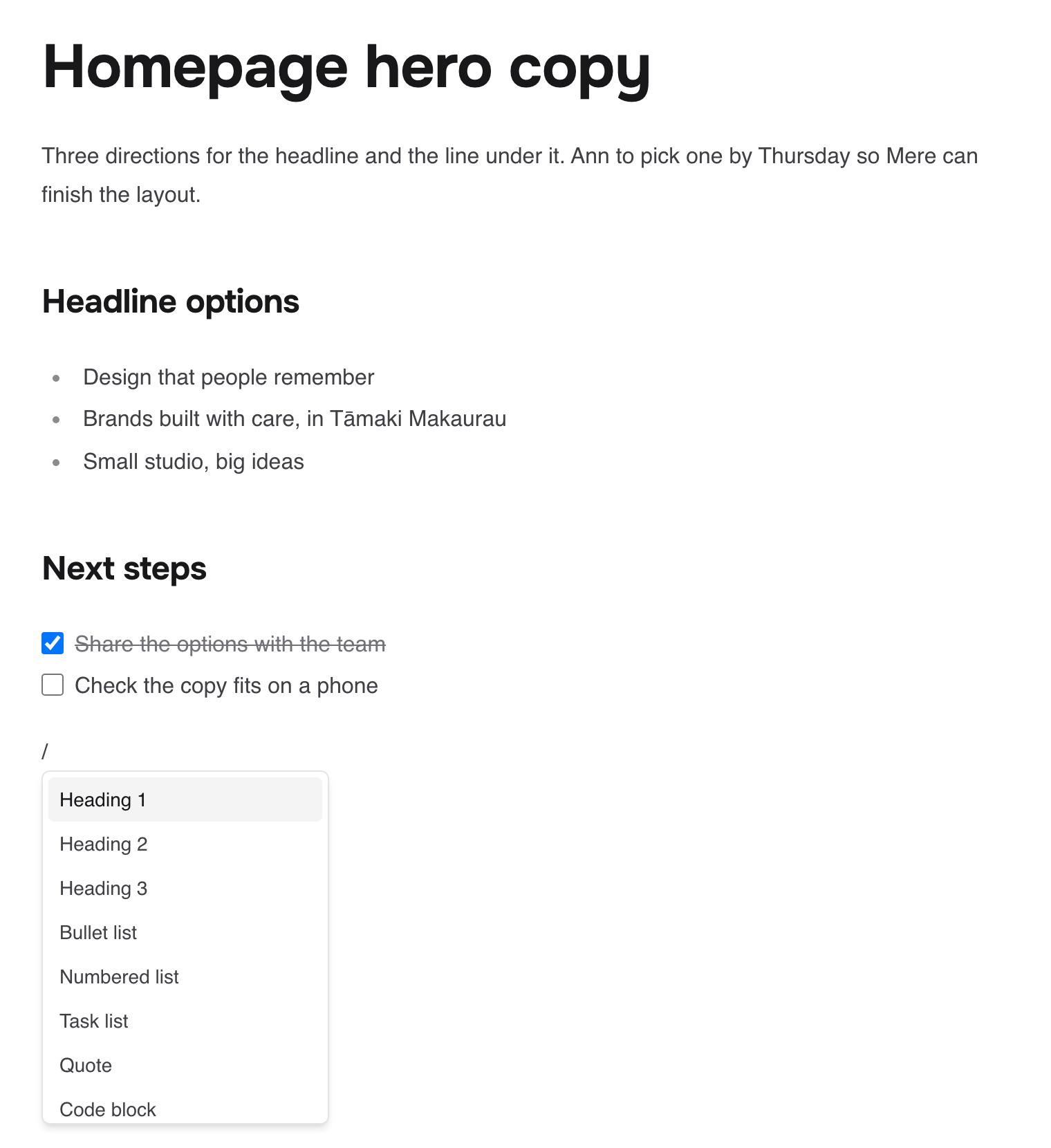
Write the rest below it. Type / for headings, lists, tasks and tables. See Format a memo with headings, tables, images and more.
You can also create a memo from:
New memo on your home page or in My memos.
New at the top of a collection or notebook. The memo is filed there straight away, which is usually what you want: a memo in a collection takes on its access, its properties and its standing instructions.
The search box: press Cmd+K (Ctrl+K on Windows) and choose New memo.
You can't create memos while you're looking at Shared with me. Switch to one of your workspaces first.
Have your AI do it
Most memos in a busy workspace are written by an AI at the end of a chat. Once yours is connected, ask it to capture what matters:
In Fieldwerk, save the decisions from this conversation as a new memo, with the follow-ups as a task list. Show me my collections and ask which one to file it in.Or to change an existing memo without opening it:
In Fieldwerk, add what we just discussed to one of my memos as a new section. Ask me which memo and what to call the section, then find it and add it.Your AI works with your access, and each change appears in the memo's history as yours, via that AI, so you can see what it did and undo it. See See and restore earlier versions of a memo.
Duplicate a memo
Open the memo's menu (More, top right).
Choose Duplicate memo.
Tick Include comments if you want the comments too, and Add the copy to collections to file the copy.
Click Duplicate.
Write a quick note from the Mac app
If you use the Fieldwerk Mac app, press Option+Shift+Space in any app to open a small Quick note window. It saves as you type, so you can capture a thought mid-call without switching apps. Pick where the memo goes, or leave it in My memos. The same window opens from New quick note in the menu bar.
Esc or Cmd+Enter closes the window. The memo is kept.
Cmd+O opens the memo in Fieldwerk.
Cmd+Backspace throws the memo away.
Control how the memo looks when shared
When you paste a memo's link into Slack, email or social media, the preview uses the memo's front matter, if it has any. Add a block like this at the very top of the memo:
---
title: Q3 plan
description: What we're doing this quarter and why.
---
The title becomes the preview's headline (up to 120 characters) and description the line under it (up to 280). Without front matter, the preview is a generic card, so the memo's text never leaks into it.